Usage guide
Day-to-day use of PullPush from the dashboard at app.pullpush.ai. For AI agents, see MCP. For HTTP integrators, see the REST API.
Accounts and workspaces
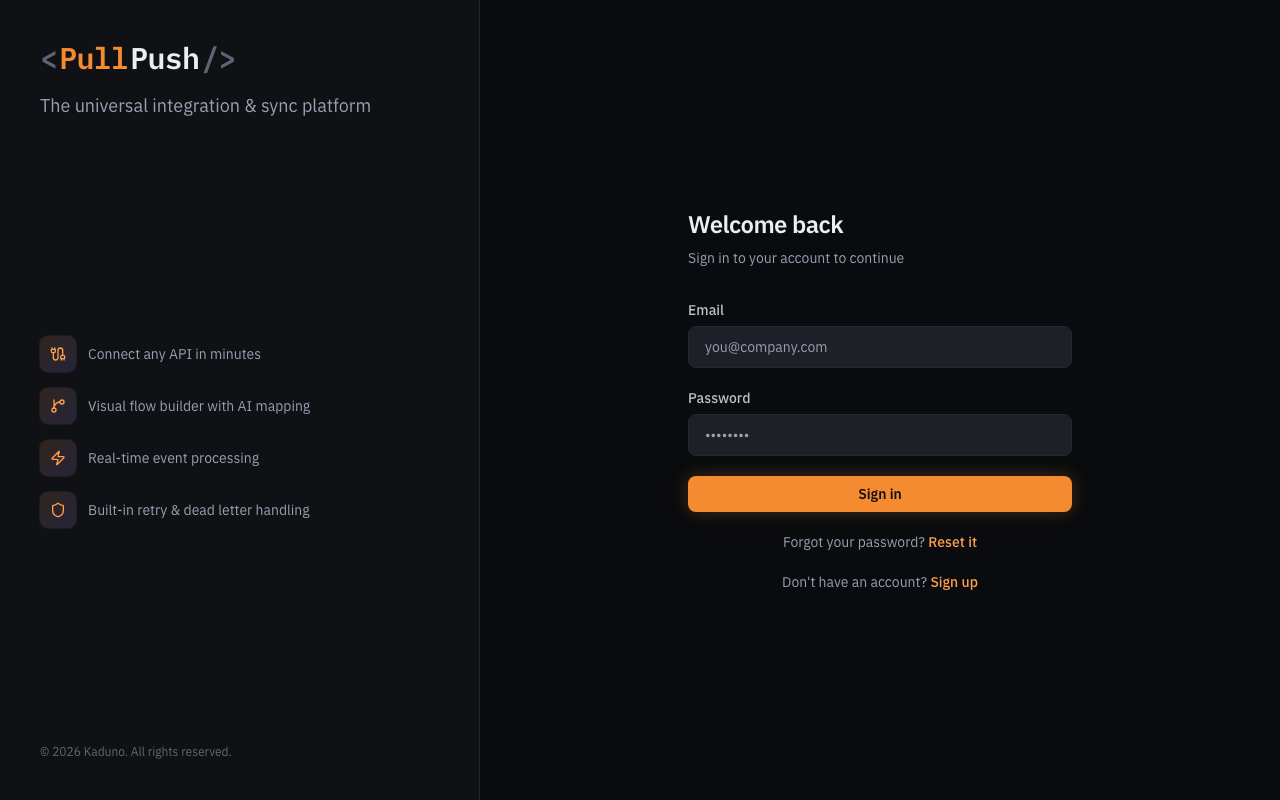
- Sign up at app.pullpush.ai/sign-up.
- You land in a tenant (workspace). API keys, connections, and flows belong to that tenant.
- Invite teammates from Settings → Members. Org-level keys can span multiple tenants when you use organizations.
API keys
Settings → API Keys → create a tenant key (pp_…).
- Store it once — plaintext is only shown at creation.
- Rotate with Rotate in the UI, or
POST /api/v1/tenants/:tenantId/keys/rotate. - Prefer tenant keys for plugins and MCP; use org keys only when you need multi-tenant automation.
Connect two systems
- Connections → Add Connection — pick a catalog platform (or build a custom connector).
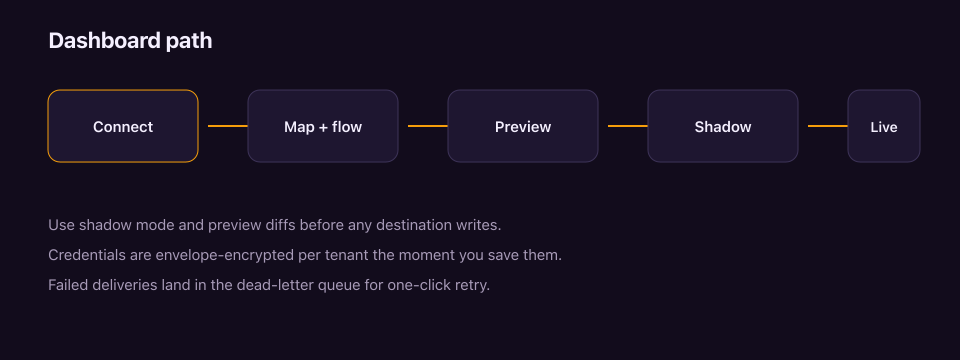
- Enter credentials. PullPush envelope-encrypts them immediately (AES-256-GCM per tenant).
- Run Test connection before wiring a flow.
- Repeat for the destination system.
Details: Connections.
One-click storefronts
- WooCommerce — install the WordPress plugin, paste a connect token (tenant API key), done.
- Shopify — OAuth install from the dashboard or install URL (no manual Admin API key copy).
Wire a flow
A flow is source connection → destination connection for one or more data types (stock, products, orders, …).
- Create a flow from the Connections or Flows screen.
- Review the field mapping (or accept an AI suggestion).
- Leave the flow in shadow mode until a preview looks right.
Canonical types: Sync types.
Preview before you write
Use Preview on a flow (or MCP pullpush.sync → preview):
- Compares live source vs destination in canonical space
- Shows equal / changed / missing rows
- Writes nothing
Then open Preview & Reconcile for how diffs are interpreted.
Shadow mode → live
- Enable shadow mode so the pipeline runs without destination writes.
- Compare shadow results vs destination.
- Cut over to live when confidence is high.
Failed deliveries land in the dead-letter queue for retry.
Imports and exports
- Import — upload CSV/JSON, map columns to a canonical type, preview against a flow, deliver.
- Export — snapshot a connection's canonical data as CSV/JSON (or email).
Both are also available over the REST API.
Monitoring
- Flow status and recent deliveries in the dashboard
- Alerts (email / in-app) with one-click acknowledge links
- MCP Setup page: copy-paste configs for Cursor, Claude, and other clients
Try without signing up
curl -X POST https://api.pullpush.ai/api/sandbox
Returns a temporary API key, MCP configs, and demo connections. Claim it later with your email to keep the work. See MCP for the agent walkthrough.
Next
| Goal | Doc |
|---|---|
| Connect ChatGPT | ChatGPT |
| Connect WooCommerce | WordPress |
| Connect Shopify | Shopify |
| Agent / IDE control plane | MCP |
| HTTP reference | REST API |
| Common questions | FAQ |
| Security model | Security |